
Get started
From the setup to the first simulated rule in an afternoon
What CertiReplica needs, how the setup wizard installs it, and the three things to do in the web app before anything is written to a company. Without a licence it works in full for 30 days. We send the setup program when you ask for a trial.
Requirements
What it needs
| A Windows server | Windows Server 2019 or later, 64-bit; Windows 10 or 11 is enough for a trial. The setup program carries its own .NET runtime, so nothing has to be installed first. CertiReplica runs as one Windows service, named CertiReplica. It does not have to be the SAP server. |
|---|---|
| SAP Business One | Version 10.0 with the Service Layer, reachable from the CertiReplica server at an address such as https://sapserver:50000/b1s/v1. Proven on SAP HANA; companies on Microsoft SQL Server have not been run yet. |
| One SAP user per company | A dedicated SAP Business One user for CertiReplica in every company, not a superuser. Its authorisations decide what can be read and written. The manual describes the set-up we recommend. |
| A browser | A current browser for the web app, served on port 5220 unless you choose another. HTTP for this server only, or HTTPS with a certificate from the Windows certificate store. |
| Nothing in the companies | No add-on, no stored procedure, no user-defined table, no database user. Nothing is installed on the SAP server or in the SAP Business One client. |
| Its own data | One file in the data folder, C:\ProgramData\CertiReplica unless you choose another. Optionally a database on Microsoft SQL Server instead. No connection to the internet or to CERTICONS is needed. |
| Licence | None for the first 30 days. After that, a licence for the number of active companies and the modules, pasted under Setup, Licence. |
Installation
The setup wizard, page by page
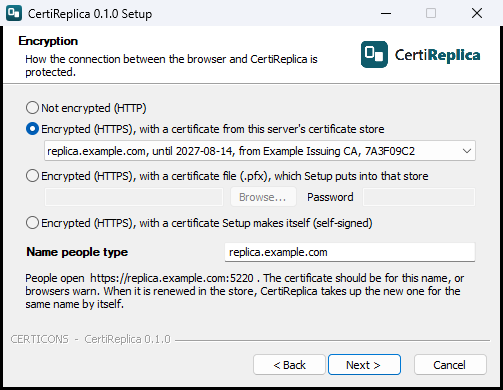
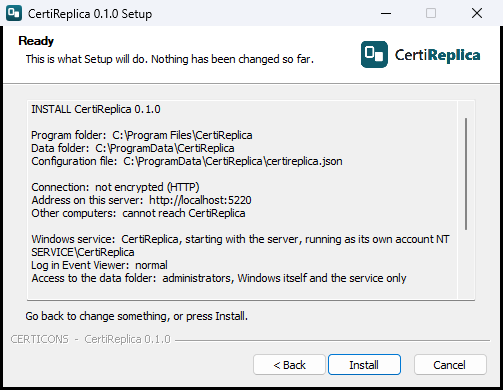
One setup program. It asks for every setting, lists what it will do before it changes anything, and writes what it did to a log in the data folder.
| Licence agreement | Read to its end and accepted. The same text as on this site. |
|---|---|
| Folders | Where the program goes, and where CertiReplica keeps its configuration and data. |
| Address | The port, and whether only this server or other computers too can open CertiReplica, with the firewall rule. |
| Encryption | No encryption, or HTTPS with a certificate from the Windows store, from a .pfx file, or one Setup makes itself. |
| Service | The account the service runs as, and the detail of its log. |
| Administrator | The name and password of the first account, so a new installation is never open to whoever reaches it first. |
| Shortcuts | On the desktop and in the Start menu. |
| Ready | Everything Setup is going to do, before it does anything. |
Started on a server where CertiReplica is installed, the same setup program upgrades or repairs and keeps every setting, or shows the settings so they can be changed. Either way it first puts a copy of the configuration and the data under backups in the data folder. The uninstaller keeps the data unless told otherwise.
Unattended
The same setup program installs without pages. Passwords are read from environment variables, never from the command line, where every program on the server could read them.
$env:CERTIREPLICA_ADMIN_PASSWORD = '…'
CertiReplica-Setup-<version>.exe /S /ACCEPTEULA /ADMIN=admin /PORT=5220 /ACCESS=network /FIREWALL=1
Further switches set the folders, the service account, the log level, HTTPS and its certificate. The installation guide that Setup installs lists them all.
First steps
Three things before the first write
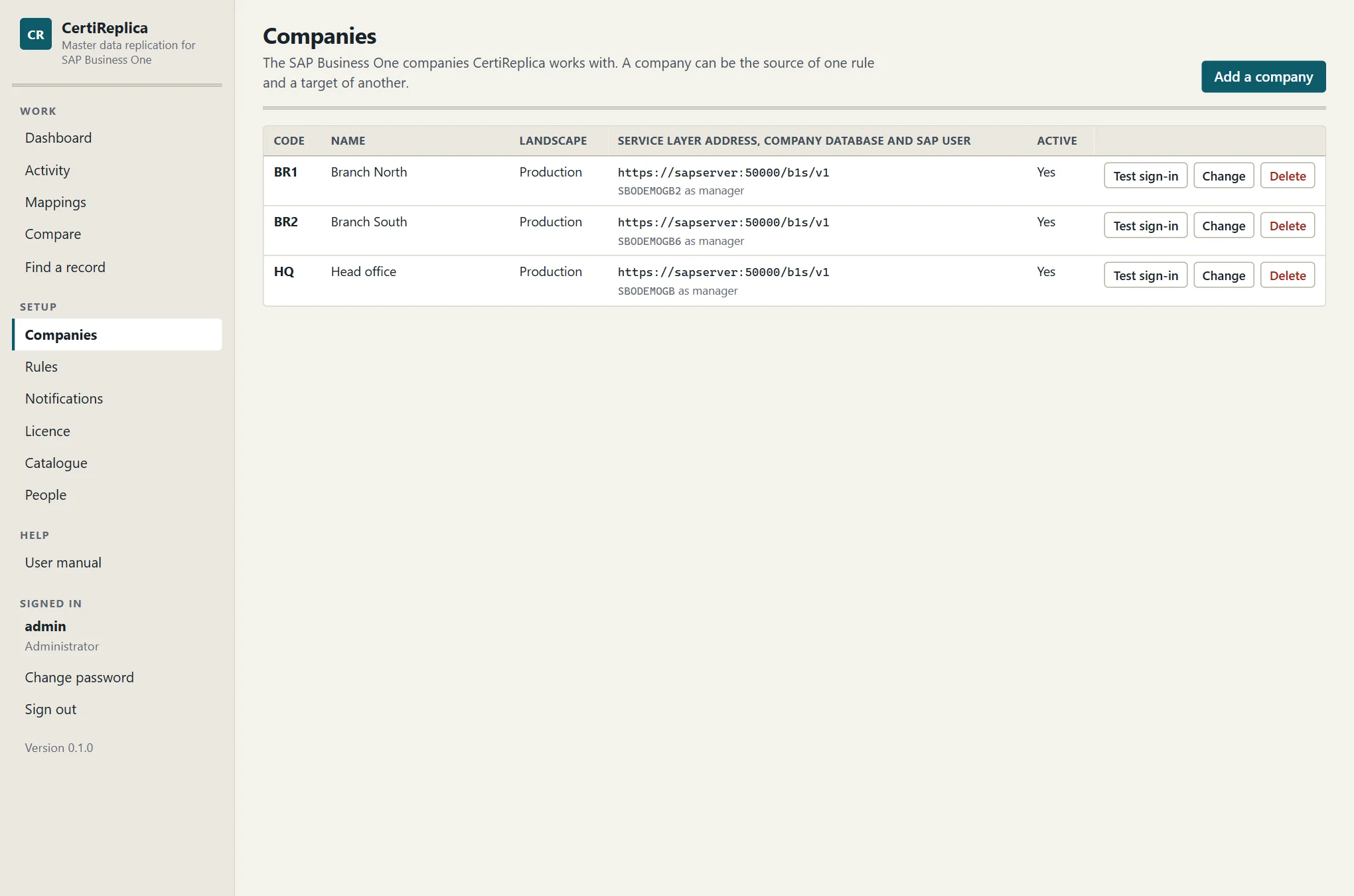
Add the companies
Under Companies, enter each company with its Service Layer address, its company database, the SAP user and the landscape it belongs to. Test sign-in proves the address, the database, the user and the password. A Service Layer that still has a self-signed certificate is refused until its thumbprint is entered; the refusal names the thumbprint.
Write a rule
Under Rules, choose the object, the source and the targets. The Fields section shows the source company's real fields with a sample value and the standard treatment; change only what you need. Start with a setup table, such as item groups, before items.
Simulate, then run
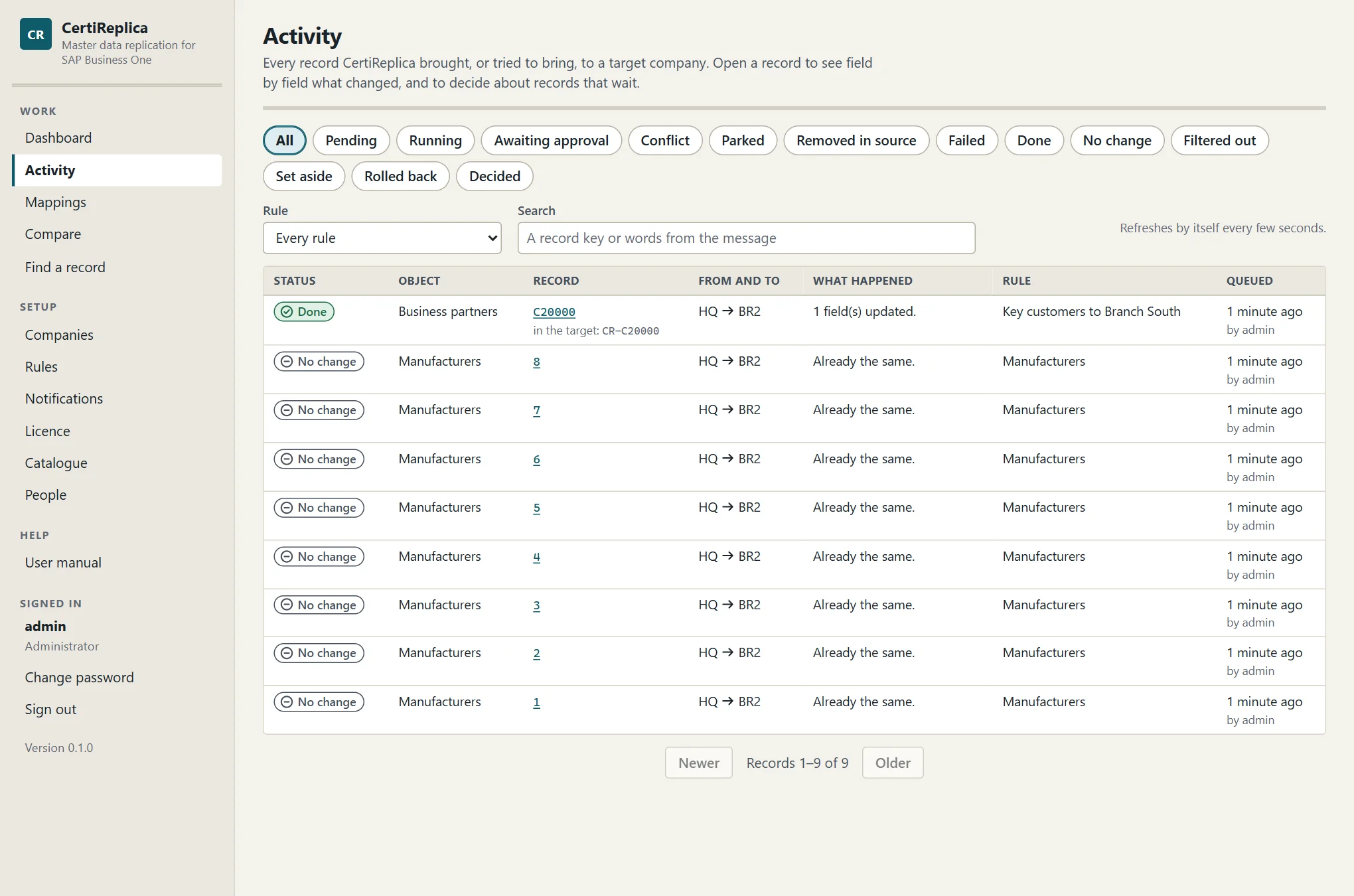
Simulate a few records and read what would be written. If existing records should be adopted rather than created, Compare shows the distance first. Then enable the rule and press Run now; Activity shows every record with its status.
A sensible order
Setup data first, then the records that refer to it
A record can only be written when everything it points at exists in the target. Either let rules create what is missing on the way, or replicate in this order:
- Units of measure and their groups, item groups, manufacturers, warehouses, price lists
- Business partner groups, payment terms, sales employees, territories, industries
- G/L accounts, projects, cost centres, distribution rules, if the chart is shared
- Items and business partners
- Bills of materials, special prices, discount groups
Tax groups, currencies, dunning terms and payment methods are never copied: pair them once under Mappings.
The user manual
Chapter by chapter, with pictures of every screen: installation, companies and the SAP user, rules section by section, mappings, activity and decisions, two-way rules, removals, notifications, the licence, accounts, troubleshooting, every object and every setting.
It is installed with the product and opens from the User manual link in the navigation and from the Start menu.
Support
Questions during a trial reach the people who build the product: info@certicons.com. For a problem with one record, send the sentence Activity shows for it and the version from the navigation.